
If you've ever tried to draw a circle around a location on Google Maps from your phone, you already know the frustrating truth: Google Maps doesn't let you do it natively.
No circle tool. No radius option. Nothing.
You can get directions, drop a pin, measure distance between two points — but drawing an actual radius circle around a location? Not built in. Not on mobile, not on desktop.
So if you need to visualize a 5-mile radius around your home, mark a delivery zone, find everything within 10 km of a city center, or check what falls within a certain distance of a school or workplace — you need a different approach.
This guide covers exactly how to do it on your phone, what your options are, and which method is fastest.
More people need this than you'd think. Common use cases include:
- Property search — finding homes within a specific commute distance from work
- Delivery zone planning — marking the service area for a local business
- Travel planning — seeing what towns or landmarks fall within a certain distance of a base location
- School catchment areas — checking if an address falls within a school's radius
- Field work and site planning — marking coverage areas, survey zones, or exclusion zones
- Emergency planning — visualizing evacuation or impact zones around a point
In all of these cases, what you need is a circle centered on a specific location, with a defined radius, overlaid on a real map. Simple concept. Harder to pull off from a phone than it should be.
Google offers a tool called Google My Maps (mymaps.google.com) that lets you create custom maps with shapes, lines, and markers. It's the closest thing to a native circle-drawing tool that Google offers.
The problem: The drawing tools in Google My Maps are desktop-only. On mobile, you can view saved maps but you can't draw shapes or place radius circles from the app. So if you're on your phone, this doesn't help you.
Even on desktop, My Maps doesn't have a clean "draw radius circle" feature — you'd have to manually draw a shape that approximates a circle, which defeats the purpose if you need accuracy.
There are browser-based tools like FreeMapTools or the Google Maps radius tool on various websites that let you type in a location and a distance, and they'll overlay a circle on a map.
These work fine on a desktop browser. On mobile, they're often painful — small buttons, zoom issues, not optimized for touchscreens, and you can't save or interact with the result in any meaningful way.
If you just need a quick visual check and you're at a computer, this might be enough. But if you're in the field, doing this regularly, or need more control, you need a proper mobile app.
The cleanest solution for drawing a radius circle on Google Maps from your phone is a dedicated app built for exactly this purpose.
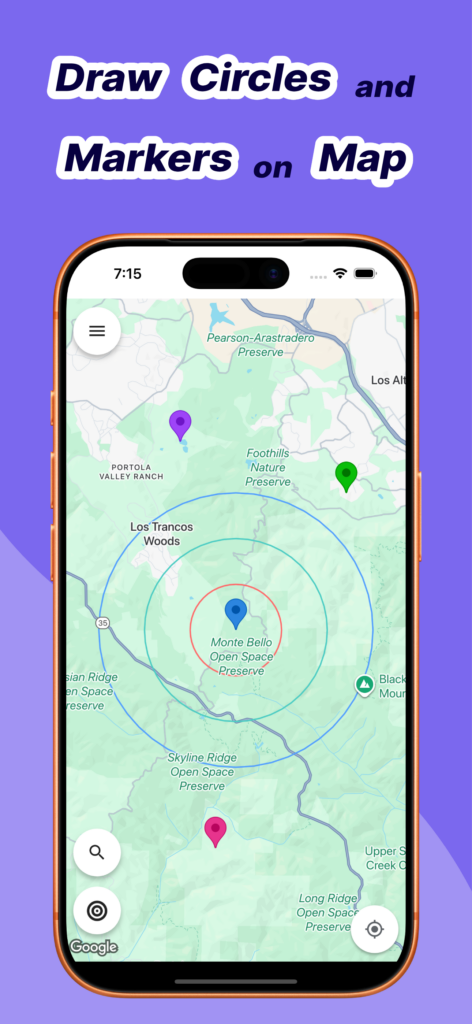
Radius Around Me is one of the best options for this on both iOS and Android. It's built specifically for drawing radius circles on a real Google Maps base — no clunky workarounds, no desktop required.
Here's how it works:
When you open Radius Around Me, you'll see a Google Maps view. You can either:
- Search for a specific address or location using the search bar
- Long Tap anywhere on the map to drop a pin at that point
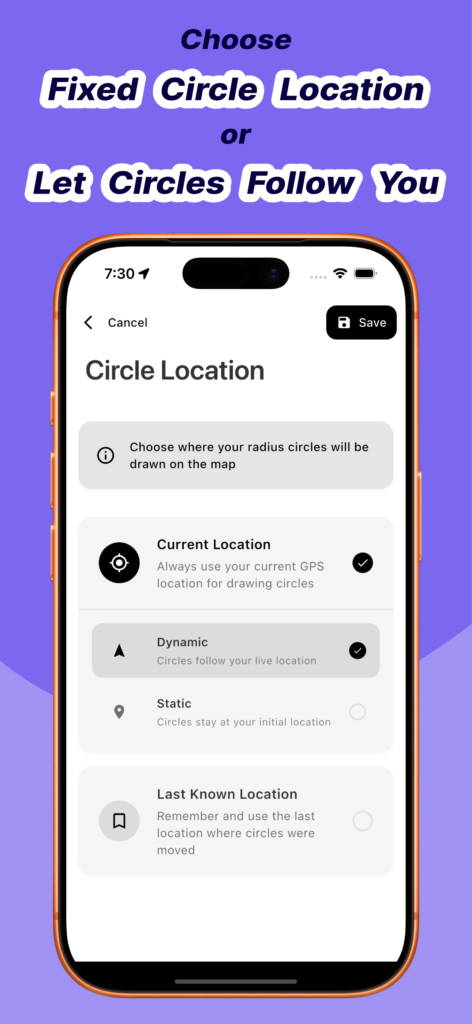
- Use your current GPS location as the center
Go to Edit Radius Values screen and enter your radius values, color and units. You can enter the radius in:
- Miles
- Kilometers
- Feet
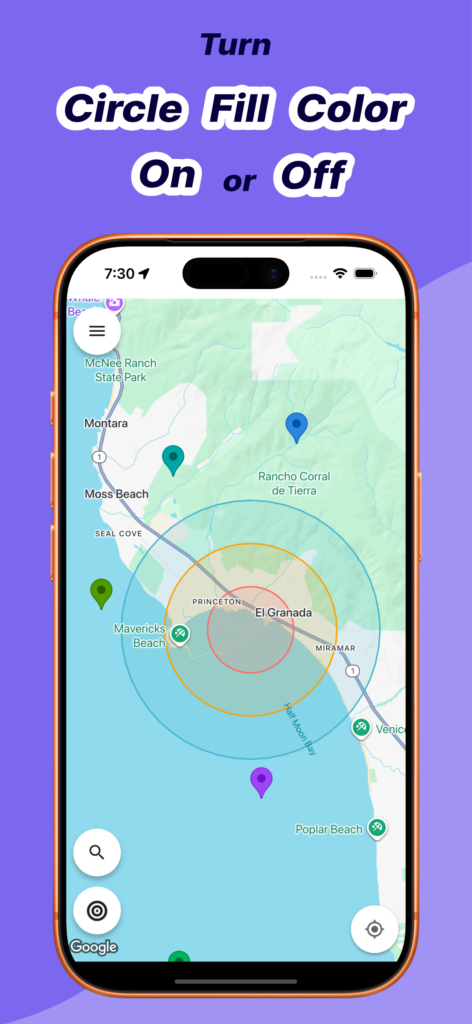
When you save your radius values on this screen, the app will draw circles according to these parameters instantly on the map. You can see exactly what area falls within your specified distance.
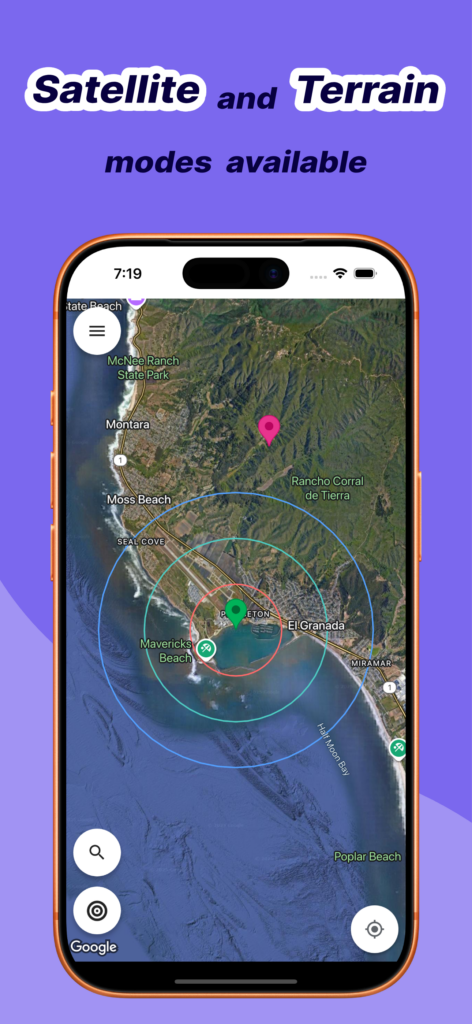
You can zoom in and out within the radius circle to see streets, landmarks, businesses, and geographic features — all on the live Google Maps base. The circle stays anchored while you explore the map underneath it.
Need to check a different radius from the same center? Change the distance value and the circle updates immediately. Need to move the center point? Tap a pin and select "Move Circles Here".
One of the more useful features is the ability to draw multiple concentric circles from the same center point — for example, a 1-mile, 3-mile, and 5-mile radius simultaneously. This is useful for tiered delivery zones, coverage rings, or comparing distances visually.
Finding a home within commute distance:
Drop a pin at your office. Set a 10-mile radius. Now you can see exactly which neighborhoods and towns fall within that distance — no guessing, no manually checking address by address.
Delivery zone planning:
A restaurant or local business can set their center point at their location and draw a 5 km radius to define their delivery coverage area. Show it to customers or staff — the map makes it instantly clear.
Finding competitors or amenities near a site:
Drop a pin on a property you're evaluating. Draw a 1-mile radius. Now zoom in and see what schools, hospitals, shops, or competing businesses are in that immediate area.
Field surveys and site assessments:
Drop a pin on a project site. Define a 500-meter exclusion or survey zone. See exactly what falls within scope — no manual distance calculations needed.
To be clear about what's built into Google Maps natively:
- ✅ Drop pins at locations
- ✅ Measure straight-line distance between two points
- ✅ Get driving, walking, and transit directions
- ✅ Search for places near a location
- ❌ Draw a radius circle around a point
- ❌ Define a custom zone or coverage area
- ❌ Show multiple distance rings simultaneously
The "measure distance" tool in Google Maps lets you click between points and see the straight-line distance — but it doesn't draw a circle, and it doesn't show you the full area within a radius. It's a ruler, not a zone tool.
If you need to draw a radius circle on Google Maps from your phone quickly and accurately, Radius Around Me is the most straightforward option available:
- Works on both iOS and Android
- Uses real Google Maps as the base layer
- Instant circle drawing with adjustable radius
- Supports multiple units (miles, km, meters)
- Supports multiple concentric circles
- No complicated setup
Read more here:
You can download it here:
Google Maps doesn't have a built-in radius circle tool on mobile. Your options are:
1. Google My Maps — desktop only, limited on mobile
2. Web-based radius tools — functional on desktop, poor experience on phone
3. A dedicated radius app like Radius Around Me — the best mobile experience, built for this exact job
If you're on your phone and need to draw a radius circle on a map, a dedicated app is the fastest and most reliable path.
Have a specific use case for radius circles — property search, delivery zones, fieldwork? Reach out to us at hellocoloredpixelsstudio@gmail.com and we'll cover it in a future post.
Blog