
If you've ever needed to mark a zone on a map, draw a boundary around a property, or annotate a location with notes and photos — you've probably tried to do it in Google Maps. And you've probably realized that Google Maps doesn't let you do any of that.
Google Maps is great for directions. It's not built for annotation, zone planning, or custom map markup. You can't draw shapes, place custom markers with details, or create collections of map elements on your phone. Not natively.
Google My Maps exists, but it's desktop-only for editing, limited in features, and doesn't offer the kind of precise shape-drawing and data-management tools that field workers, planners, real estate professionals, and researchers actually need.
If your work involves annotating maps, marking boundaries, planning zones, measuring distances, or organizing location-based data — you need a dedicated map annotation app. One that runs on your phone, works with Google Maps, and gives you real tools for the job.
This guide covers why you'd need a map marking app, what tools are available, and which mobile app gives you the most complete mobile GIS experience for drawing shapes, placing markers, and managing location data.
The need to annotate maps comes up more often than people think. Here are the most common use cases:
- Real estate and property planning — marking property boundaries, highlighting parcels, annotating development sites
- Urban planning and city zoning — drawing zone boundaries, infrastructure layouts, public space plans
- Agriculture and farming — mapping field boundaries, planning irrigation systems, tracking crop zones
- Field research — recording environmental zones, marking wildlife habitats, collecting geotagged research data
- Trucking and delivery logistics — marking route zones, coverage areas, and delivery perimeters
- Event planning — designing outdoor event layouts, marking stages, vendor zones, and checkpoints
- Surveying and site assessments — marking survey zones, exclusion areas, and measurement points
- Education and GIS coursework — creating map annotations for geography projects, spatial analysis assignments, and field studies
In every one of these cases, you need a tool that lets you draw shapes on a map, place markers with detailed information, and organize your data — all from your phone.
Let's be clear about Google Maps' limitations:
- ✅ Get directions and navigate
- ✅ Search for places and businesses
- ✅ Drop a basic pin at a location
- ✅ Measure distance between two points
- ❌ Draw circles, polygons, or custom shapes on the map
- ❌ Place custom markers with notes, images, or task details
- ❌ Organize map elements into groups or collections
- ❌ Calculate area of a drawn region
- ❌ Measure distances between multiple points
- ❌ Attach photos or notes to a map location
- ❌ Back up map data to the cloud
Google My Maps offers limited drawing tools, but only on desktop — and it doesn't support the kind of detailed annotations, area calculations, or element management that professional use cases require.
For anything beyond basic navigation, you need a dedicated map drawing app.
A good mobile map annotation tool should give you the following:
- Shape drawing — circles, polygons, and custom boundaries that you can place anywhere on the map
- Custom markers — waypoints with icons that you can use to highlight specific locations
- Rich details — the ability to add names, descriptions, notes, tasks, and photos to each map element
- Distance measurement — a tool for calculating distances between multiple points directly on the map
- Area calculation — automatic calculation of the area enclosed by your shapes
- Styling controls — color, fill, stroke width, and visibility for each element
- Organization — collections or groups to keep your map elements organized
- Cloud backup — so your data is safe even if something happens to your device
- Google Maps as the base layer — real satellite imagery, terrain, and street data
Map Canvas is a mobile app that transforms Google Maps into a fully annotatable workspace. It's built for drawing shapes, placing custom markers, and managing location-based data — all from your phone.
Think of it as a Geographic Information System (GIS) tool in your pocket. It's designed for field workers, surveyors, planners, researchers, real estate professionals, farmers, truck drivers, event organizers, and GIS students who need more from their maps than directions.
Here's how it works.
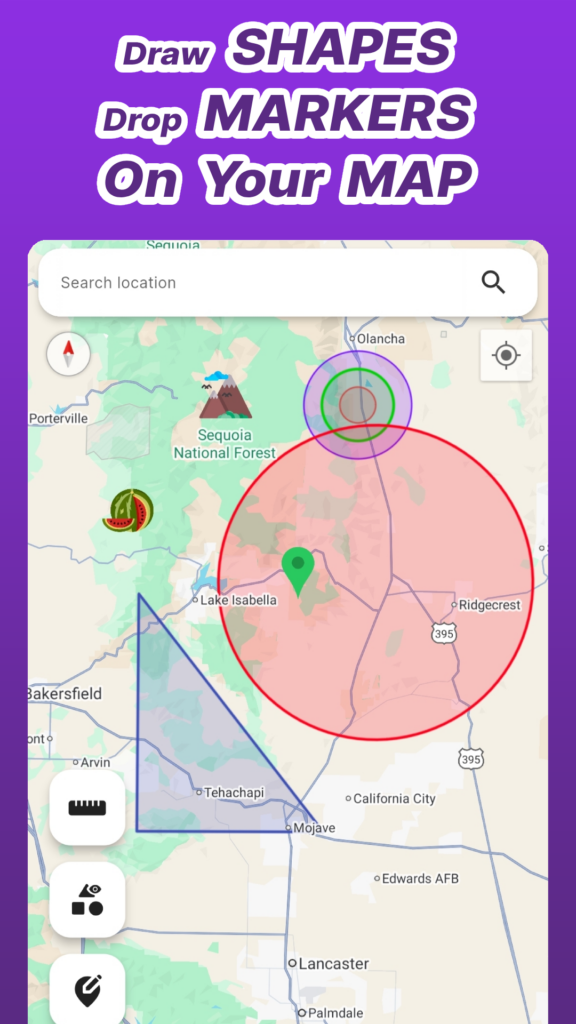
Map Canvas lets you draw concentric circles and multi-sided polygons at any location on the map. This is ideal for:
- Defining zones and coverage areas
- Marking property boundaries and lot lines
- Planning agricultural field layouts
- Creating exclusion or survey zones
- Drawing delivery perimeters and route zones
Each shape is fully customizable — you can set stroke width, fill color, main color, and visibility. This gives you precise control over how your annotations look on the map, which matters when you're presenting plans to clients, colleagues, or stakeholders.
Beyond shapes, Map Canvas lets you place custom icon markers or waypoints at any point on the map. Use these to highlight landmarks, mark equipment locations, flag points of interest, or label specific spots on your project site.
Combined with shape drawing, markers give you a complete map annotation system — zones for areas, markers for specific points.
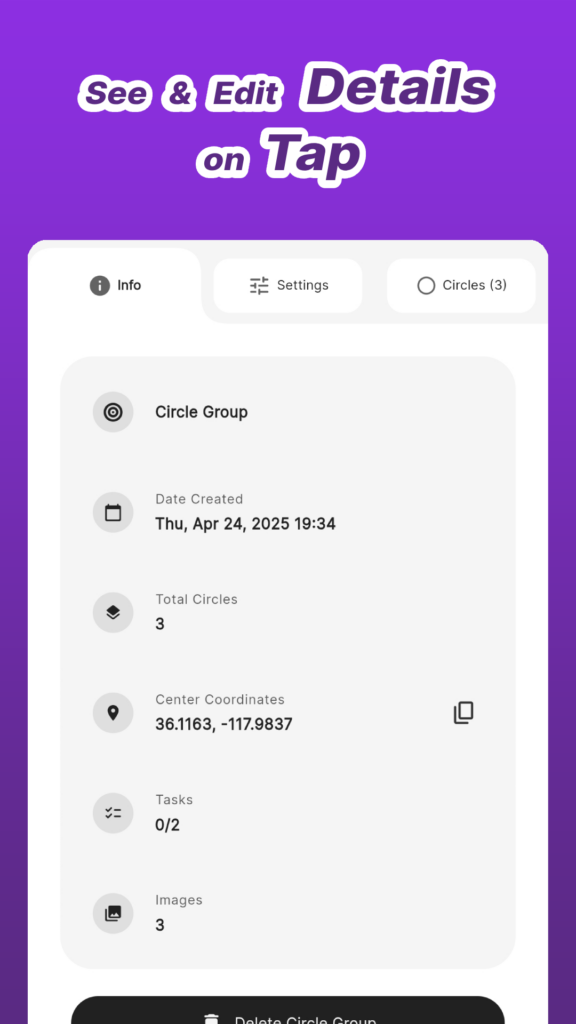
This is where Map Canvas goes beyond basic map drawing apps. Tap any shape or marker to open a detail view that shows:
- Name and description
- Coordinates and calculated area
- Attached notes — add context about the location
- Task management — assign tasks to specific map elements
- Image attachments — photograph the location and attach it directly to the map element
This turns each map annotation into a mini-database record. For field researchers, site assessors, and project managers, this means all relevant data is linked directly to its location on the map — no separate spreadsheets, no disconnected notes.
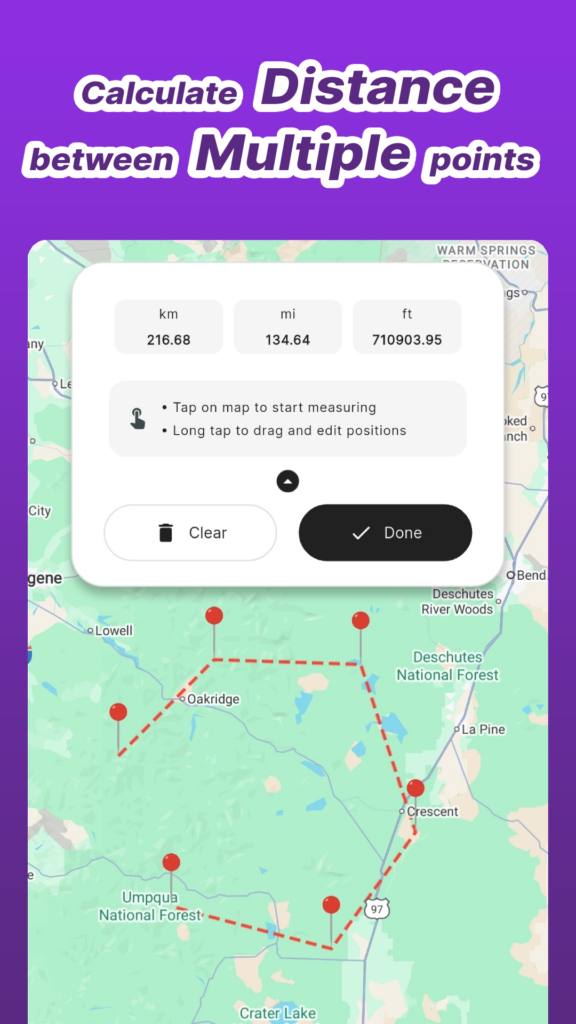
Map Canvas includes a distance measuring tool that lets you calculate distances between multiple points directly on the map. This is essential for route estimation, layout planning, spatial analysis, and field surveys.
Unlike Google Maps' basic two-point measurement, Map Canvas supports multi-point distance calculation — so you can map out an entire route, perimeter, or path and see the total distance instantly.
As your map fills up with shapes and markers, organization becomes critical. Map Canvas lets you group elements into Collections — user-defined folders that keep related annotations together.
Toggle entire collections on or off to show or hide all their elements at once. This is invaluable when you're working on multiple projects on the same map, or when you need a clean view that only shows what's relevant to your current task.
Map Canvas lets you personalize the map appearance with:
- Map styles — Day, Night, and Retro views
- Map types — Normal, Terrain, and Hybrid (satellite with labels)
- App themes — Light and Dark mode
- Units — Imperial or Metric
- Time format — 12-hour or 24-hour
The Hybrid map type — satellite imagery with street labels — is particularly useful for real estate, construction, and agricultural work where you need to see actual ground conditions alongside standard map data.
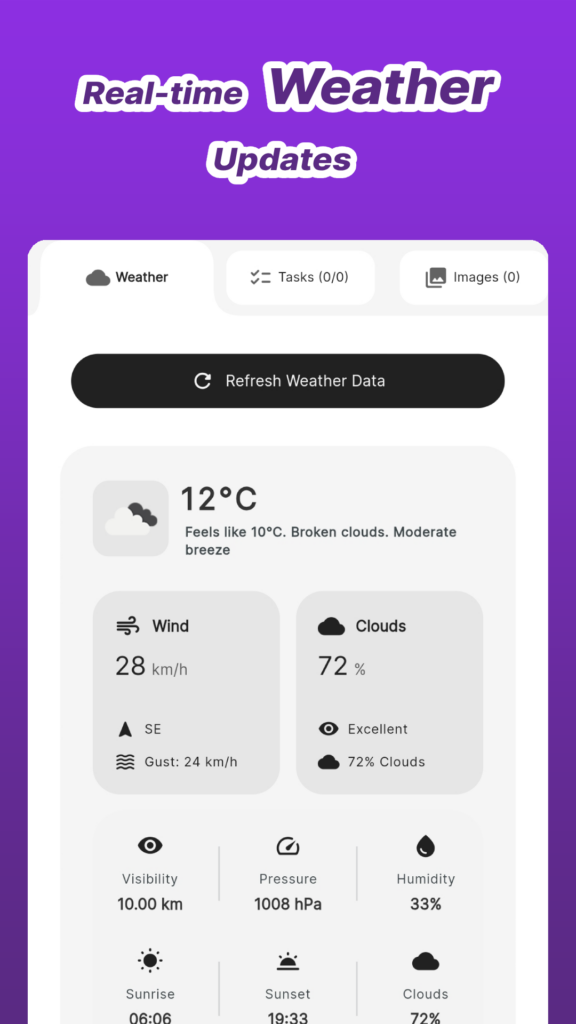
Map Canvas can retrieve current weather information for any marked location. This is a useful feature for field workers, outdoor event planners, and anyone whose work depends on weather conditions at a specific site. Check conditions at your project location without leaving the app.
All your map data — shapes, markers, details, and photos — can be securely backed up to the cloud (up to 200 MB). This means your work is safe even if your device is lost, damaged, or replaced. Your map data stays synced and recoverable.
Real estate site evaluation:
Draw a polygon around a property boundary. Attach photos of the lot. Add notes about zoning, nearby amenities, and development potential. Measure the distance from the property to key landmarks. Everything lives on the map, organized and accessible.
Farm and field mapping:
Map your field boundaries with polygons. Mark irrigation equipment with custom icon markers. Create collections for different crop zones. Track planting and maintenance tasks directly on each field element. The distance measurement tool helps plan irrigation line routes.
Urban planning and infrastructure layout:
Draw zoning boundaries for a development project. Mark proposed infrastructure locations. Add detailed descriptions and task lists for each zone. Toggle between map types to see terrain data, satellite imagery, and standard views.
Truck driver route planning:
Draw a circle radius around your base to define your travel zone. Place markers at regular stops and clients. Measure distances between stops to optimize routes. Check weather at your destinations before you leave.
Field research and environmental studies:
Map wildlife habitats with polygons. Place markers at observation points with geotagged photos and field notes. Organize data into collections by study area or species. Use the terrain map type to understand the landscape.
Outdoor event layout planning:
Draw polygons for stage areas, vendor zones, parking, and emergency access routes. Place markers at checkpoints, entrances, and key infrastructure. Add task lists for setup requirements at each location. Share the annotated map with your team.
- Field workers, surveyors, and truck drivers
- Researchers and scientists doing field data collection
- City and urban planners
- Real estate professionals evaluating sites and properties
- Farmers, environmentalists, and agricultural planners
- Outdoor event organizers and coordinators
- GIS professionals and students
- Anyone who needs to draw on a map and organize location-based data
- Unlike Google My Maps, Map Canvas works natively on your phone with full editing capabilities — no desktop required
- Unlike simple "draw on map" apps, Map Canvas includes rich element details with notes, tasks, and photo attachments
- Unlike web-based map tools, Map Canvas gives you offline access to your annotations with cloud backup for data safety
- Unlike full-scale GIS software, Map Canvas is designed for mobile use — fast, intuitive, and built for fieldwork
Map Canvas fills the gap between basic map apps and expensive professional GIS software. It's powerful enough for real work, simple enough to learn in minutes.
Read more here:
You can download it here:
Google Maps is built for navigation — not annotation. If you need to draw shapes on a map, place detailed markers, measure distances, organize location data, or manage field projects, you need a dedicated map annotation tool.
Map Canvas gives you everything Google Maps is missing: custom shapes and polygons, icon markers, rich element details with notes and photos, distance measurement, collections for organization, weather integration, and cloud backup — all on a real Google Maps base, all on your phone.
Whether you're a real estate professional, a farmer, a field researcher, a truck driver, a city planner, or a GIS student — Map Canvas turns your phone into a mobile GIS tool that's ready for real work.
Have a specific use case for map annotation — property mapping, field research, event planning? Reach out to us at hellocoloredpixelsstudio@gmail.com and we'll cover it in a future post.
Blog